Org Chart in Google Sheets: When It Works and When It Breaks
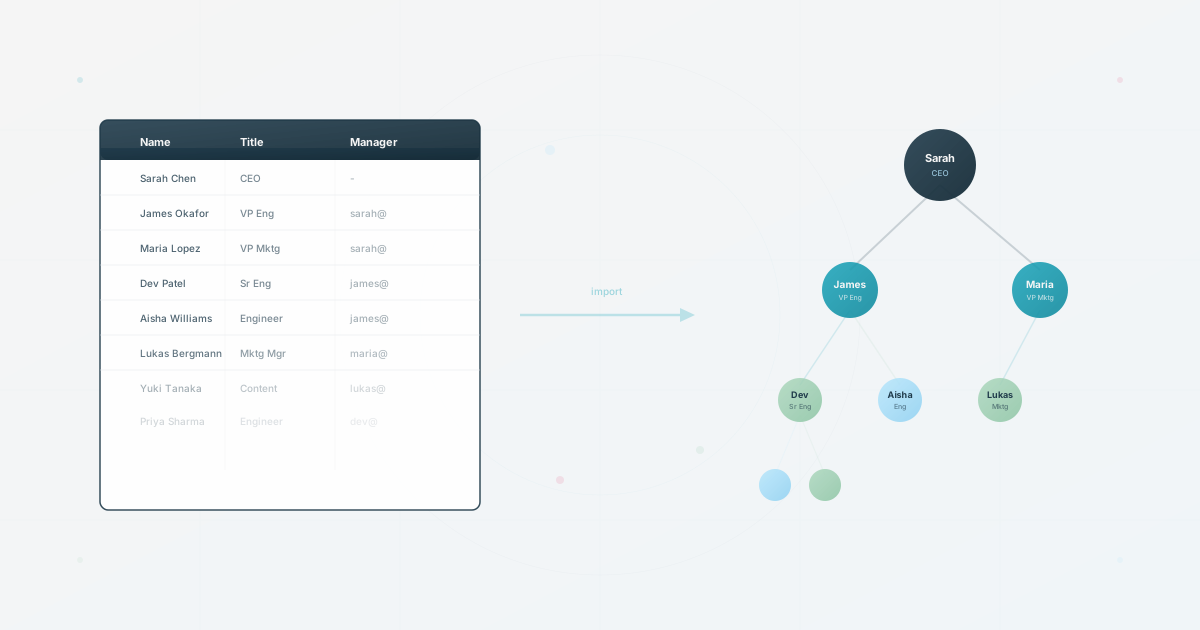
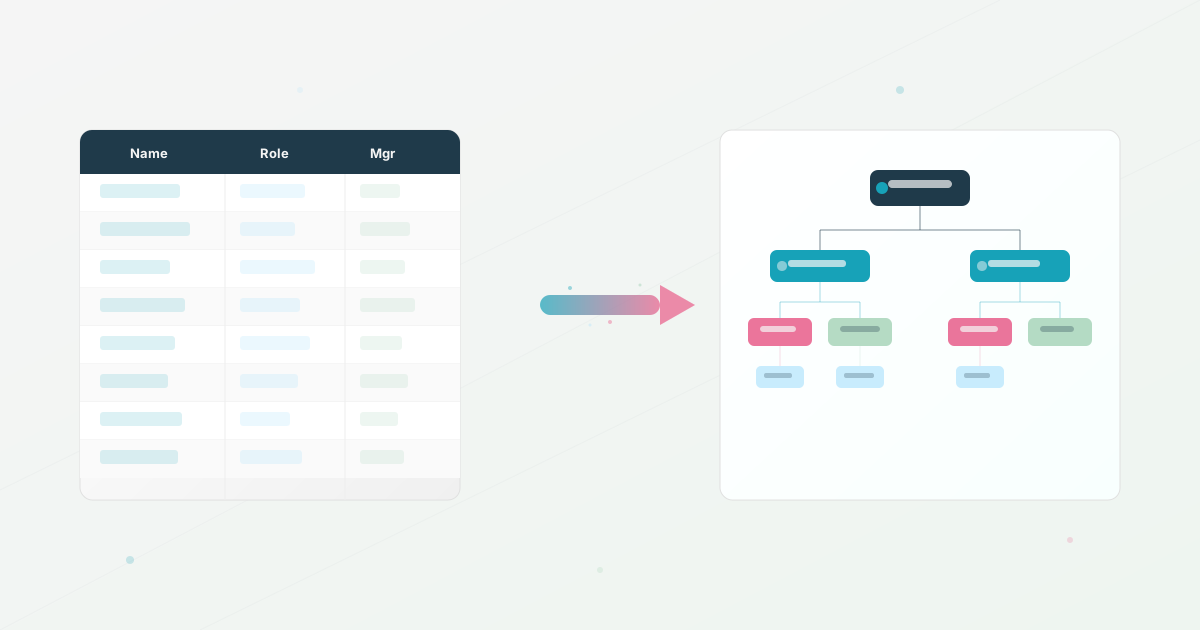
You can create an org chart in Google Sheets by putting each person in the first column, their manager in the second, and optional notes in the third. Select the data, insert a chart, and choose Organizational chart. Google’s official organizational-chart instructions show the required format.
Google Sheets is a practical starting point for teams that already use it, mostly because the data is familiar and easy to share. If you use Excel instead, see the Excel org chart guide for the equivalent workflow.
For a small, stable team, a well-organized spreadsheet may provide enough structure: names, titles, managers, and departments in a format people already know. The trade-off is that access, editing, search, and privacy still need an owner.
If you are choosing a creation workflow rather than deciding whether Sheets is enough, start with our seven-step guide to creating an organizational chart, then use this article to decide where Google Sheets fits.
If your team already works in Microsoft 365, compare this workflow with our step-by-step Excel org chart guide. The data principles are the same; the editing and maintenance experience is different.
Headcount is only a rough context signal. A fast-growing small team may feel the limits earlier, while a stable larger team may be comfortable with a carefully owned sheet. The data might be fine; the problem is that a spreadsheet was designed to store data, not help people navigate an organization.
This guide covers both sides. Small teams get a clean Sheets structure. Larger teams get a way to spot the point where the spreadsheet is creating more work than it saves.
Why Google Sheets Works for Small Teams
For a small, stable team, a Google Sheets org chart has real advantages over dedicated software.
What actually makes Sheets work here is that the data lives where people already work. People with access can edit simultaneously. When someone changes teams, the owner can update one cell and other viewers see the changed sheet without a new attachment. Sheets still has version history, but it is not an employee-facing directory.
An advantage is that Sheets bends to whatever you need. Add a column for location, one for start date, or one for skills. For some small teams, that flexibility matters more than a polished interface nobody opens.
A Clean Template to Start With
If you’re going to use Sheets, do it right. A spreadsheet org chart can fail not because Sheets is the wrong tool, but because the structure is sloppy: missing manager fields, inconsistent naming, or no unique identifiers.
This template gives you a clean starting point.
The core table
| Column | Example | Purpose |
|---|---|---|
| external_employee_id | CEO001 | Unique identifier for each employee |
| fullName | Sarah Chen | Employee’s full name |
| title | CEO | Job title |
| external_manager_id | (empty for CEO) | The unique ID of this person’s direct manager |
| external_team_id | EXECUTIVE | Team or department identifier |
| passions | Leadership & Strategy | Interests and passions (comma-separated) |
| description | Short role or profile context. | Optional context that helps a colleague decide who to contact |
| picture | profile-photo-url | Optional profile photo URL that the chosen tool can access |
Sample data
The rows below are illustrative sample data, not a customer example or real employee record.
| external_employee_id | fullName | title | external_manager_id | external_team_id | passions | description |
|---|---|---|---|---|---|---|
| CEO001 | Sarah Chen | CEO | EXECUTIVE | Leadership & Strategy | Executive role example. | |
| ENG001 | James Okafor | VP Engineering | CEO001 | ENGINEERING | Distributed Systems | Engineering leadership role example. |
| MKT001 | Maria Lopez | VP Marketing | CEO001 | MARKETING | Brand & Growth | Marketing leadership role example. |
| ENG002 | Dev Patel | Senior Engineer | ENG001 | ENGINEERING | Backend & APIs | Engineering role example. |
| ENG003 | Aisha Williams | Engineer | ENG001 | ENGINEERING | Frontend & Accessibility | Engineering role example. |
| MKT002 | Lukas Bergmann | Marketing Manager | MKT001 | MARKETING | Content & SEO | Marketing role example. |
| MKT003 | Yuki Tanaka | Content Lead | MKT002 | MARKETING | Storytelling | Content role example. |
| ENG004 | Priya Sharma | Engineer | ENG002 | ENGINEERING | Cloud Infrastructure | Engineering role example. |
Structuring the sheet
-
Use a unique employee ID as the manager link, not names. “James Okafor” is ambiguous if you ever hire another James. IDs are unique. Every row’s
external_manager_idshould exactly match anexternal_employee_idin another row. The CEO’sexternal_manager_idstays blank. -
One row per person. No exceptions. No merged cells, no blank rows for spacing, no “section headers” in the middle of the data. Every row is a person. If you want visual separation, use conditional formatting or filters.
-
Keep one canonical tab. You can create filtered views or pivot tables in other tabs, but the raw data lives in exactly one place. The moment you start maintaining two tabs with overlapping employee data, they can diverge quickly.
If your company is in an early growth stage, this structure is a useful starting point. Test it against the questions your team actually asks.
Adding Visual Hierarchy in Google Sheets
A flat table works for data, but people want to see the structure.
The built-in org chart (Google’s chart editor)
The source table above stores manager IDs. Google’s chart needs matching labels for each person and their manager, so prepare a chart range first:
- Keep the original employee table as your canonical data. Create a temporary Source tab for chart preparation with
external_employee_idin A,fullNamein B, andexternal_manager_idin C. Copy these three columns by header: the sample above stores manager IDs in D; the downloaded CSV stores them in F. Include the header row and every employee row. Refresh this preparation copy from the canonical data when it changes. - Check that employee IDs are unique, names are filled in, and every nonblank manager ID matches an employee ID. Leave the root’s manager blank. Keep IDs as text so leading zeroes survive.
- Create a ChartData tab. Put
Employeein A1 andManagerin B1. In A2 enter:
=Source!B2&" ["&Source!A2&"]"In B2 enter:
=IF(Source!C2="","",VLOOKUP(Source!C2,Source!A$2:B,2,FALSE)&" ["&Source!C2&"]")- Fill both formulas down to the last employee row only. The labels include IDs so two employees with the same name remain distinct. The exact-match VLOOKUP returns the manager’s name; an unresolved ID leaves a visible
#N/Ato fix before charting. If your sheet locale uses semicolons between function arguments, replace the commas in the formula with semicolons. - Select the filled A:B range in ChartData, including its headers, then choose Insert > Chart > Organizational chart. Check the root and its direct reports against the source. For the sample above,
James Okafor [ENG001]reports toSarah Chen [CEO001], whose manager is blank. The downloadable CSV follows the same procedure with its own rows.
Do not select the name column alongside raw manager IDs: the parent labels must match the employee labels exactly.
It works for a basic hierarchy and lets you click to expand or collapse branches. For a small team, it can be adequate. As the team grows, the chart may become harder to scan: boxes can overlap, names can be truncated, and the built-in view is limited to the fields you selected.
Third-party add-ons
Tools like Lucidchart and Miro offer Google Sheets integrations that pull your spreadsheet data into a visual chart. These work better than the built-in chart for layout and aesthetics. The tradeoff: you’re now maintaining two tools, and the visual falls out of sync every time the spreadsheet changes without someone manually refreshing the integration.
Where Google Sheets Breaks Down
Three specific friction points appear as the team and the update frequency grow.
Problem 1: Finding context takes more work
In a small company, people may know one another well enough to find a colleague by scrolling or asking directly.
As the team grows, scrolling doesn’t cut it. You need to find the person responsible for partnerships in the DACH region, the engineer who worked on the billing migration, or anyone in the London office who speaks French.
Google Sheets can search text in cells with Ctrl+F, including expertise and role context. In the sample above, searching “Cloud Infrastructure” finds the relevant row without knowing the person’s name. The limitation is the workflow around that lookup: colleagues need useful fields, consistent terms, and enough context to judge the match. Test a few real questions in your sheet before deciding that a dedicated directory would help.
That gap turns the org chart from a living tool into an artifact people stop opening. When finding someone takes more effort than just asking in Slack, the spreadsheet loses.
Problem 2: Maintenance gets heavier
Updating the org chart at 15 people may take only a few edits. As the team grows, changes happen more often and each one takes longer. A team restructure can mean editing several rows, updating manager links, and correcting titles that were already copied into another view.
And the work can compound. Track how much time your team spends collecting changes, fixing manager links, updating copied views, and checking the result. The annual total is useful only when it comes from your own workflow, and the chart can still be wrong between updates.
Nobody owns the spreadsheet, and that’s the deeper problem. The Head of People started it. A team lead added some fields. Someone copied it to a new tab to “try something.” Now there are three tabs, two of which are outdated, and the main one has formatting that breaks if you sort by department.
Problem 3: One view for all audiences
A Google Sheet is a single flat view of the data. Its sharing settings can restrict access, but they do not automatically tailor fields for different audiences.
But different audiences need different information. The CEO needs headcount by department and reporting depth. A new hire needs to understand team structure and find their onboarding buddy. An external board member needs a clean hierarchy without personal contact details.
With Sheets, you either share the source table broadly or create separate views such as filtered tabs and copied sheets. Those options may not provide the same governed, audience-specific workflow as a dedicated tool, so check the permissions and sharing setup your organization needs.
This is a common way for growing companies to end up with competing versions of the org chart, each accurate at a different point in time.
Sheets Plus a Visual Layer: Buying Time
Some teams try to get the best of both worlds. Keep the spreadsheet as the data source but use a separate tool to render the visual.
Common setups include Google Sheets feeding into Lucidchart via its Sheets integration, Sheets exported as CSV and imported into a charting tool, or Sheets connected to Google Slides for a manual visual layer.
This approach buys you time. The data stays in a familiar place, and you get a better-looking output. But it introduces a sync problem. Every time the spreadsheet changes, someone has to manually refresh or re-import the visual. If that person is on vacation, the chart drifts. If the import mapping breaks after a column rename, nobody notices until the CEO asks why the chart shows a department that was dissolved two months ago.
The hybrid works as a bridge. It’s not a long-term solution.
When to Stay and When to Switch
The decision depends on whether the sheet still lets people find information and make changes without creating drift.
Stay with Google Sheets if:
- Your team is small and stable
- Everyone already uses Google Workspace
- You have one person who keeps the sheet current and updates remain manageable
- You don’t need different views for different audiences
- New hires can find the team structure within a time target your team considers acceptable
At this stage, Sheets may be the right tool. Use the template above, name the owner, and revisit the decision when the workflow starts creating recurring friction.
Consider switching if:
- Updates repeatedly consume meaningful time or happen often enough to create drift
- Employees regularly ask “who does X?” instead of checking the chart
- You need separate views for leadership, employees, and external stakeholders
- New hires need repeated help to map the organization or find the right contacts
- You’ve caught errors in the chart that led to wrong decisions or miscommunication
- You have multiple tabs or copies of the org chart and none of them agree
Use the list as a decision prompt, not as a universal threshold. Record the recurring time, errors, and access problems before comparing a dedicated tool. Our org chart software comparison covers the trade-offs.
Features That Actually Matter When You Switch
If you’ve decided to move past Sheets, don’t just pick the first tool with a nice demo. The features that matter most are the ones that address exactly what broke in the spreadsheet.
Search. Can employees search by name, title, department, skill, or location? Search is often the clearest difference from a spreadsheet, but test the terms employees actually use. If the tool does not return useful results, it may be only a prettier spreadsheet.
CSV import. You already have your data in a spreadsheet. Test the import with a representative sample before estimating the full transition. Any tool that requires manual entry of a large employee list may create the same maintenance problem in a new interface. The import process should include validation and review, rather than stopping at a successful upload.
Multiple views. One dataset, different presentations for different audiences. Leadership sees the full hierarchy. Employees see a searchable directory. The board sees a clean, read-only view.
Low maintenance. If the new tool requires the same manual effort as the spreadsheet, you’ve just moved the problem to a fancier interface. Look for tools that let you re-import updated CSVs and merge changes intelligently, or connect directly to your HRIS.
Access controls. Google Sheets offers Viewer, Commenter, and Editor roles. You can also restrict who edits particular sheets or ranges, but edit protection does not hide their contents from viewers. If different audiences need different employee information, test that specific visibility requirement in any replacement tool and confirm the relevant plan limits.
For a detailed look at what different tools offer (including free tiers), our org chart software comparison covers the trade-offs.
Making the Transition
If you decide to move, the path is shorter than you think:
- Clean the data first. Audit for duplicate rows, missing manager links, inconsistent department names (“Eng” vs “Engineering”), and stale entries. An hour of cleanup prevents a messy import.
- Import and spot-check. Export as CSV, import into your new tool. Verify the CEO sits at the top, your team’s reporting lines are correct, and department groupings match reality. If something is off, fix the CSV and re-import.
- Share and crowdsource corrections. Don’t announce it as “the new org chart tool.” Just share a link and ask: “Is this accurate?” The person who notices their title is wrong will tell you within a day.
- Retire the spreadsheet. Once the new tool is verified, stop updating the Sheet. Don’t delete it. Just add a note: “Archived. Current org chart: [link].” If you keep updating both, they will diverge.
Google Sheets is a legitimate org chart tool for small teams. If your data is clean and people can find what they need, keep it and save the budget. Once the sheet becomes a bottleneck for search, maintenance, or sharing, a dedicated tool addresses the underlying problem. The transition is simpler than it sounds: you already have the data, and a CSV import can provide a practical starting point.
If your team can still find people within a time target it accepts, stay with Sheets. If employees are DMing HR to ask who handles what, you have a concrete signal that the workflow needs attention.
Use this today
Run the stay-or-switch test with your current sheet
Leave the exercise with a decision grounded in real tasks and update time.
- 01
Create one canonical tab with one row per person, a stable ID, and a manager ID. Label old tabs as archived instead of leaving them to compete.
- 02
Ask a colleague to find a person by name, team, and area of expertise without help. Record the time and where the sheet makes them hesitate.
- 03
Change three rows and measure how long it takes to update the visual representation, shared views, and any linked documents.
- 04
Switch only when the cost of those workarounds is clear. Carry the cleaned table into the next tool so the migration does not become a redesign project.
Pass / fail check
Stay with Sheets while it remains easy to find people, control access, and update one source. Switch when two or more of those jobs repeatedly fail.
Questions readers ask most